Open source · Apache-2.0 · Self-hosted on Cloud Run
Google Cloud architecture diagrams you host, explore and script
Create a Google Cloud architecture diagram of an organisation, folder or project from Cloud Asset
Inventory, every box a real asset and every arrow a real reference: self-hosted in your own Google Cloud
project with one script, explored in a web app, and rendered as SVG, PNG or draw.io through an API,
without opening the app.
The demo needs no sign-in: it draws synthetic organisations generated in your browser.
Self-hosted · Web app · API
Three ways to use gcportrait
One instance in your project serves the web app and the API, and both produce the same drawing: what the app
exports is what the API renders.
Self-hosted
In your own Google Cloud project
One line deploys gcportrait as a single Cloud Run service: no database, no stored token, and your
inventory never passes through anyone else’s server. It asks for your project id and nothing else; you
are signed in with gcloud auth login.
a release, checked against its checksums, deployed to your project
about 10 min
to “Sign in with Google”, the OAuth client included
Web app
Explore it in your browser
Sign in with your Google account and pick an organisation, folder or project, or load an export file:
lenses, search, a details drawer, the 35-day timeline and SVG, PNG or draw.io export, with your snapshots
kept in your browser. It works on every screen, from a phone to a desktop, with the same controls.
No sign-in: four synthetic organisations, generated in your browser.
API
Rendered exports without the UI
Your instance answers POST /api/render with an SVG, a PNG or a draw.io file of any view, from
a live scope, an export file, a saved snapshot or a demo organisation, for scripts, docs and reviews. The
request carries your own Google token, as gcloud auth print-access-token prints it.
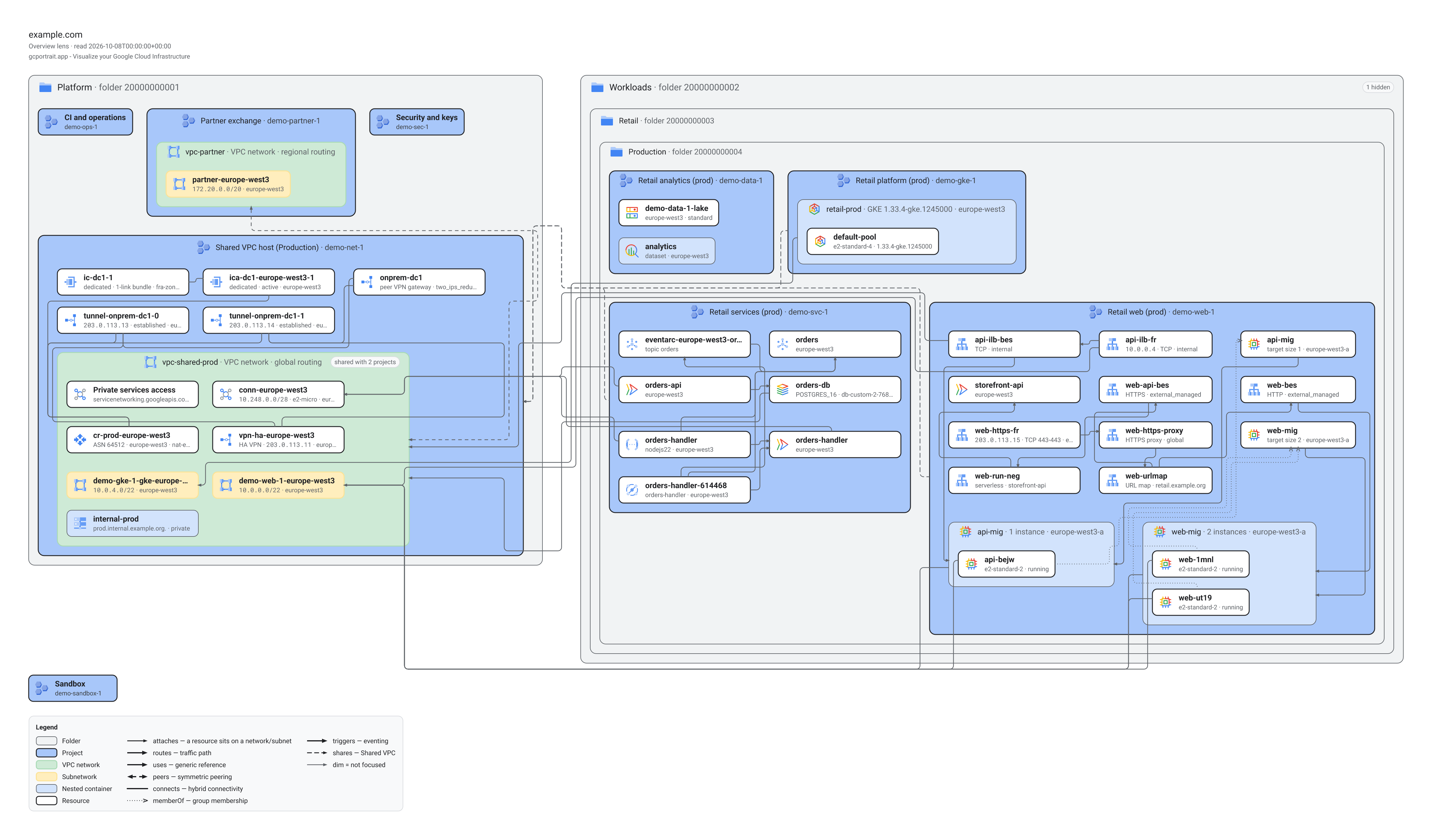
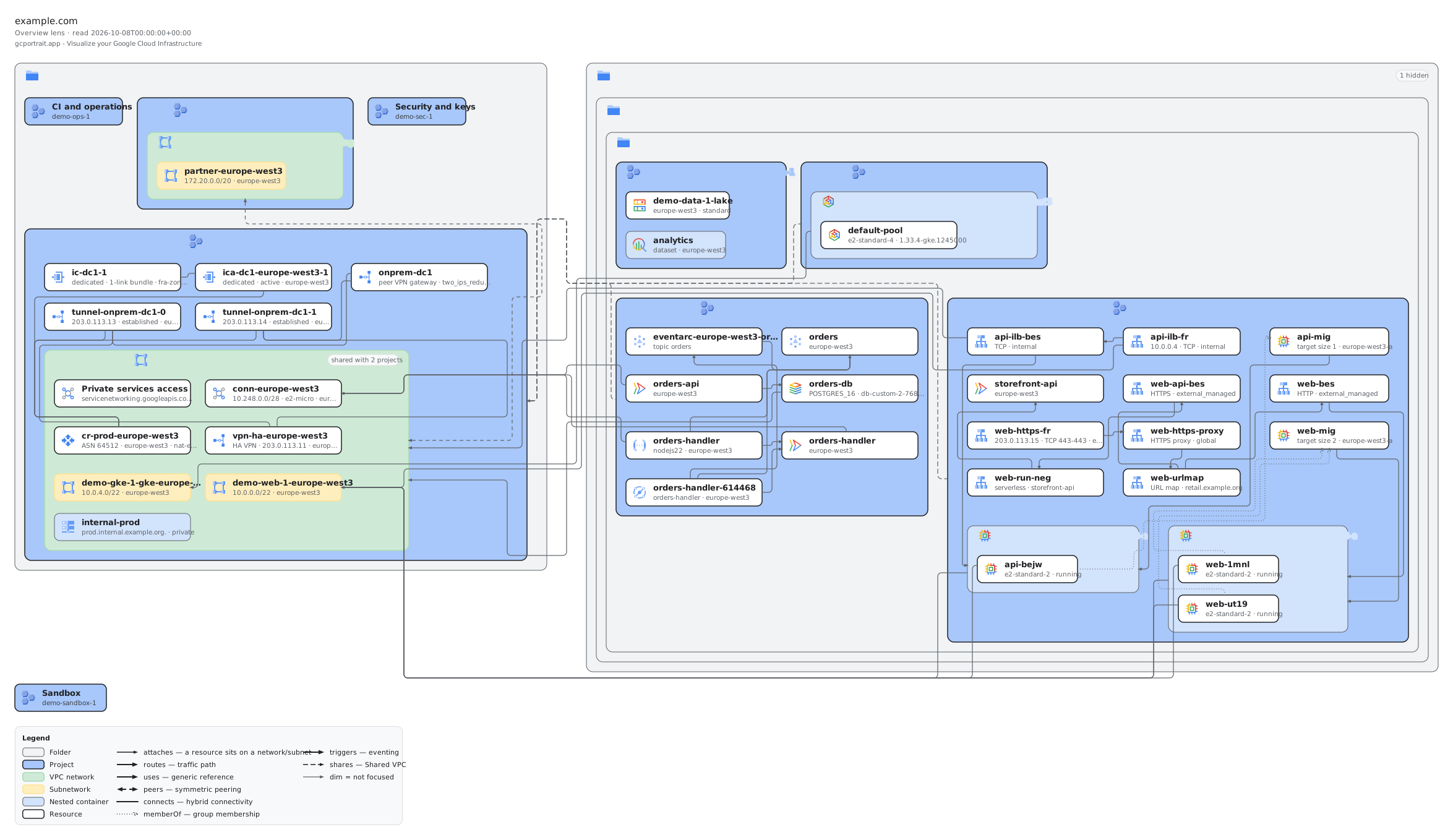
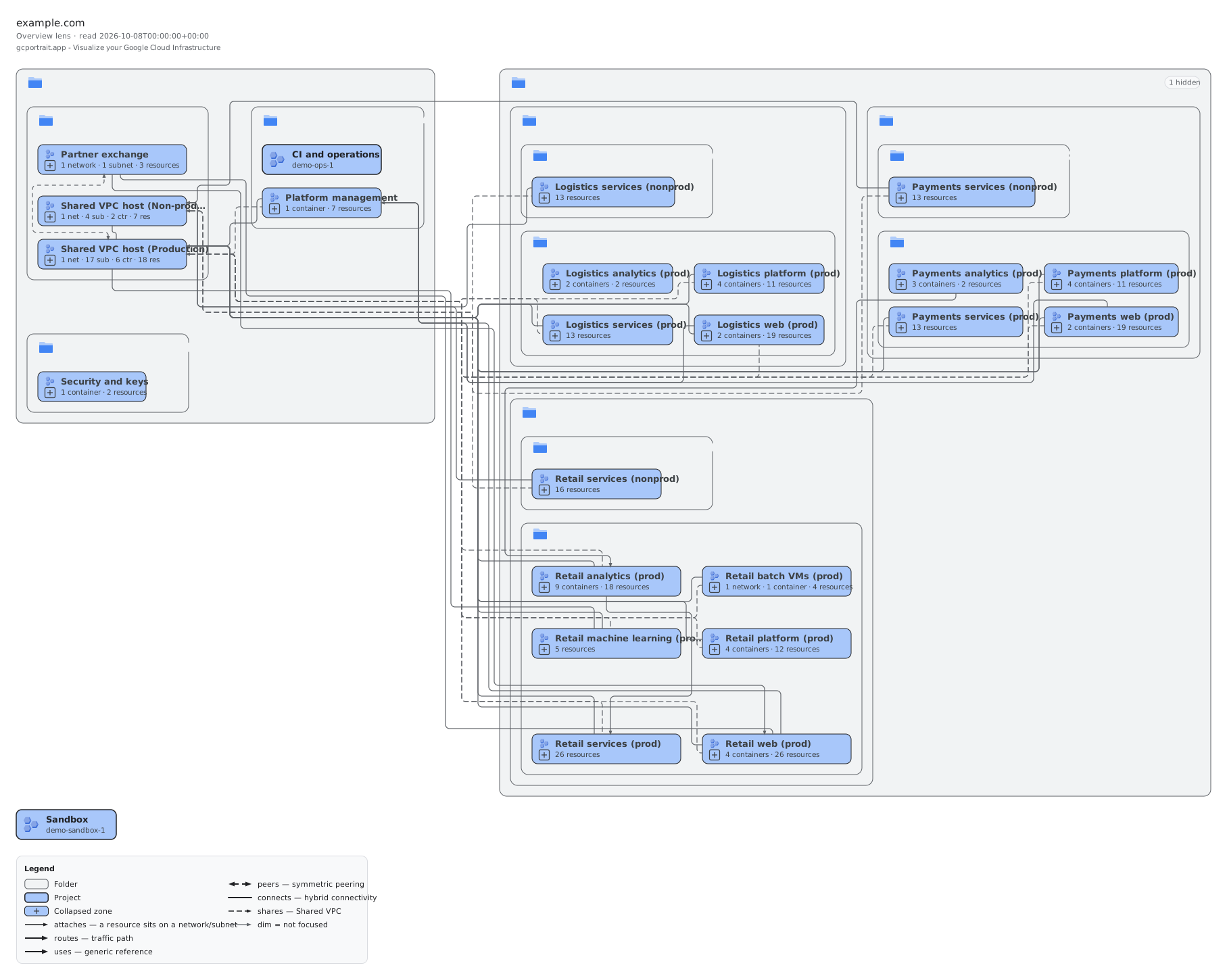
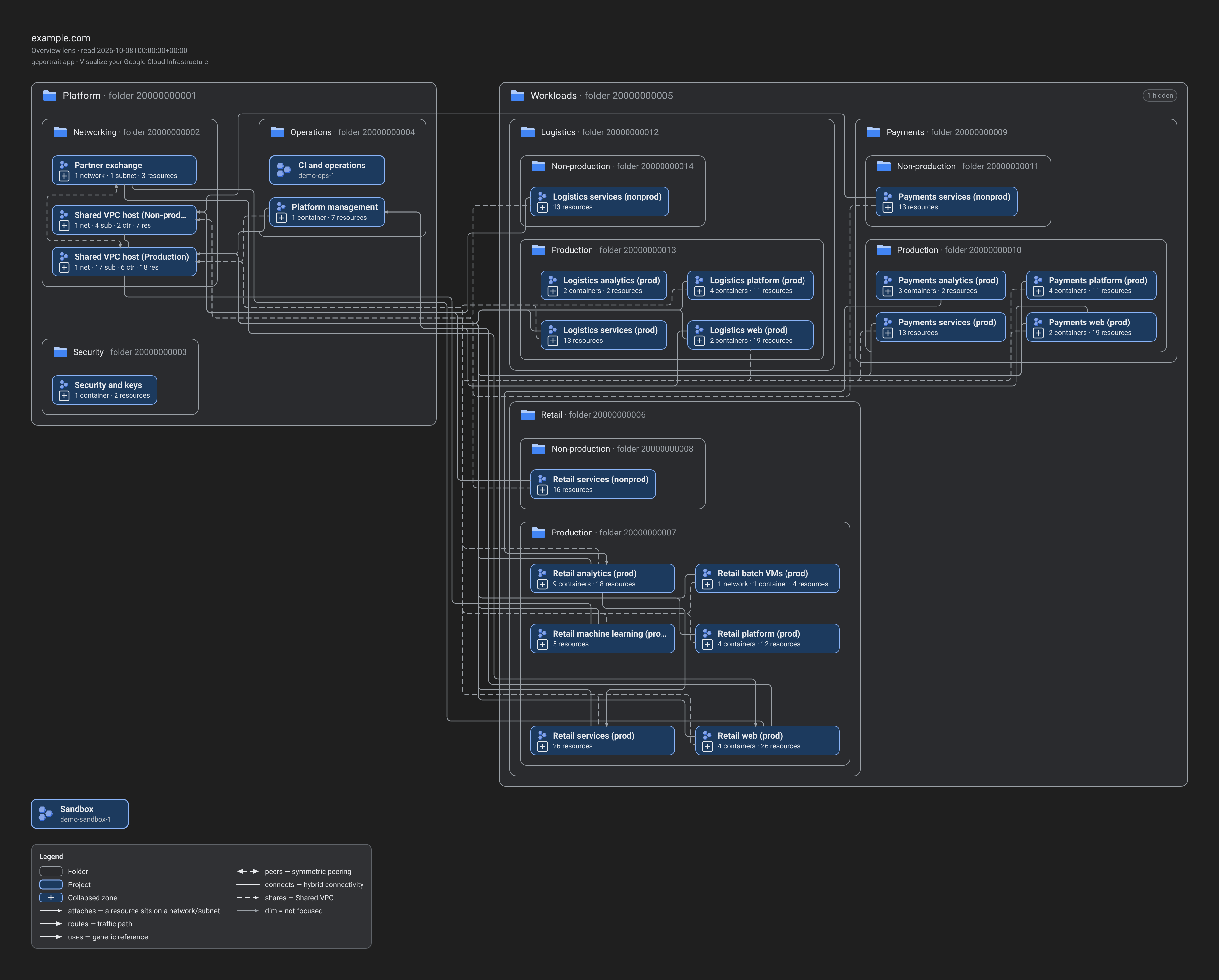
What it returns: demo S’s overview as a 4,794 × 2,812
PNG, the same file as the sample export
(download, 743 kB).
Features
What the web app shows, and the API draws
Web app · API
Diagrams from real data
Nothing to draw by hand. Folders, projects, networks and clusters nest as zones, Google’s product icons sit on every card, and load balancer chains, Shared VPC and every other reference become arrows routed through the gaps, never across a box.
632 of the 648 asset types Cloud Asset Inventory lists are
described in the catalog.
Web app · API
Lenses, focus and filters
Eleven lenses redraw the same organisation: the overview, everything, and one for each question — networking, load balancing, compute, serverless, Kubernetes, data, security, identity and operations. Focus on a project, a Shared VPC or a perimeter; filter by region, project, folder, type and depth. The API takes the same view.
Lenses and filters
Web app
Click to trace, open in the console
Hover a resource and its path to the top of the organisation lights up; click it and its path and its connections stay traced, the whole chain behind a load balancer included. The details drawer lists its facts and relations, and “Open in Cloud Console” opens its page only when you choose it.
Web app
Drill in and expand
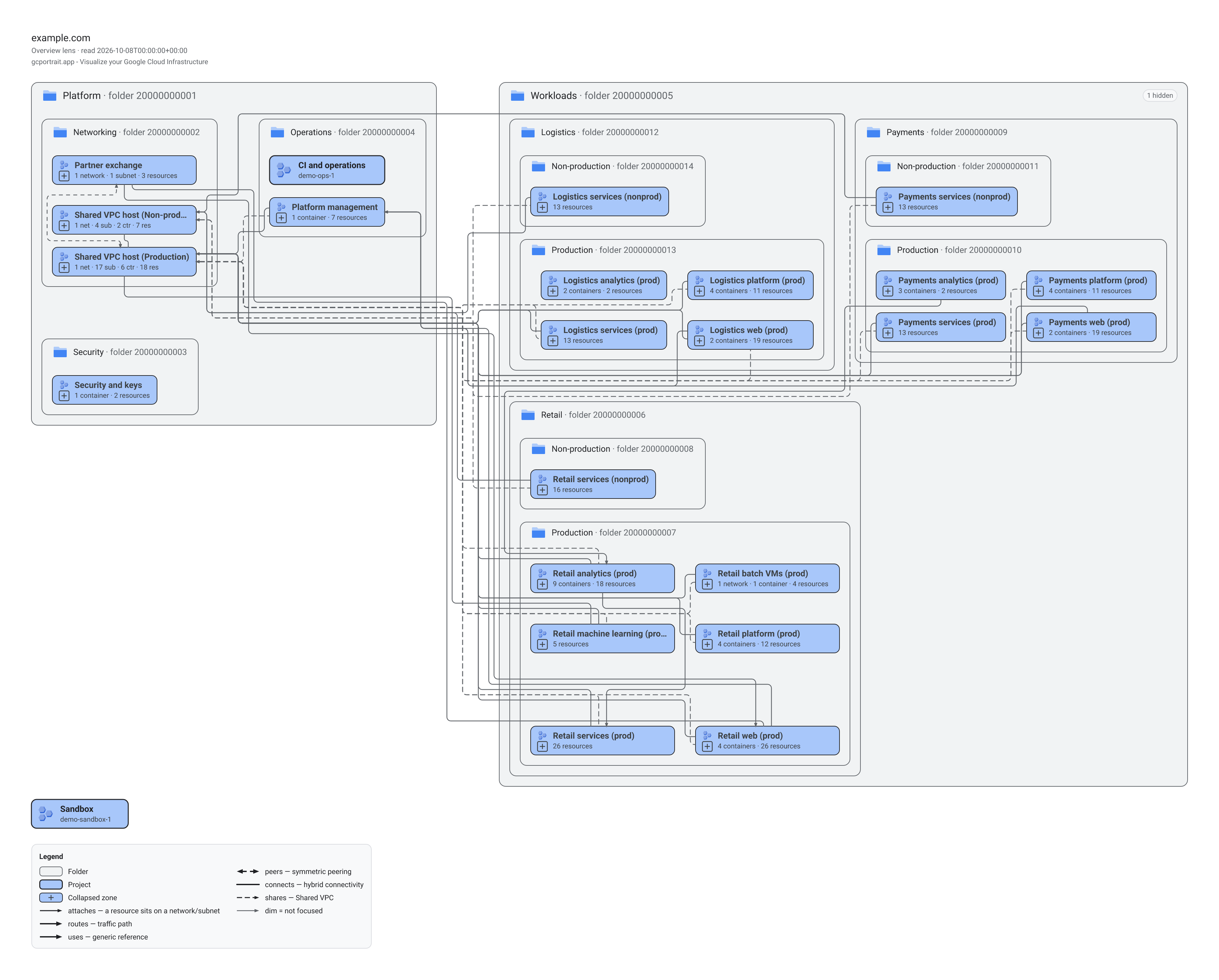
Large organisations open collapsed: projects become chips that count what they hold. Click a zone to expand it in place, double-click to make it the whole canvas; the breadcrumb leads back out.
Web app
Search anything
Press / to find any asset by name, IP address, domain or project id. Enter selects it, opens the zones around it and shows its details; if the lens hides it, a dialog offers a way to show it.
Web app · API
A 35-day timeline
Move any view through the last 35 days, each day read from Cloud Asset Inventory when you stop on it and kept in your browser. Each day is compared with the day you came from: added resources outlined, removed ones as ghosts where they stood, changed ones marked. Exports and manual pulls appear as extra ticks, and the API draws any of those days.
The timeline
Web app · API
Export SVG, PNG and draw.io
Save the current view as SVG, as PNG (2× or 3×) or as a draw.io file, the whole diagram or the visible part, in either theme, with a title block, a legend and the date it shows. Every view is also a link, and a self-hosted instance draws the same files for scripts through its API (POST /api/render).
Export · API
Web app · API
Export to draw.io, edit in diagrams.net
The draw.io file is the drawing as a diagram you can edit, not a picture of it: in diagrams.net or draw.io every zone is a container that moves with what it holds, every resource a group of its box, Google’s icon and its label, every arrow a connector between its two resources with its bends, heads and dashes, and the title block and the legend sit on a layer of their own, in the colours of the theme you exported. It is the SVG drawing translated, not drawn a second time, and the test suite checks it against the SVG. gcportrait itself stays a viewer: draw.io is an export, never an import.
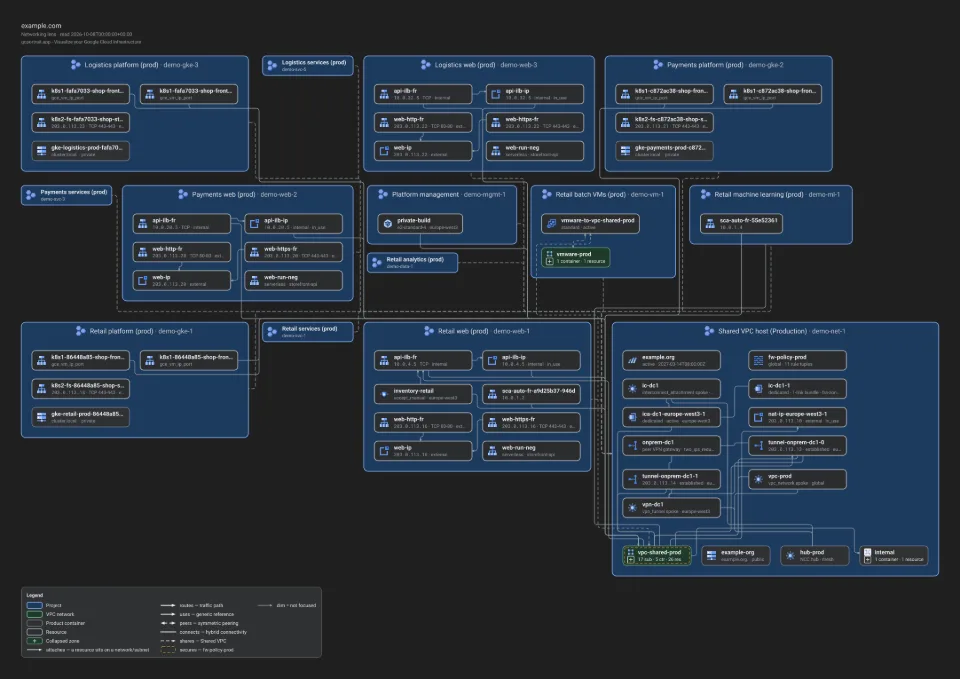
Demo M’s production Shared VPC, a sample export: the buttons open its draw.io file.
All sample exports
Web app
A demo mode, no account needed
Four synthetic organisations, from about 100 to about 50 000 assets, each with a 35-day history, generated in your browser. Try the diagrams, lenses, search, timeline and export before you deploy anything.
Open the demo (opens in a new tab)
Self-hosted · Web app
Your inventory stays in your browser
Snapshots, the demo’s and your own, live in your browser and leave it only as files you export. The backend is stateless: it streams what Cloud Asset Inventory returns and keeps nothing; your sign-in token stays in the tab’s memory.
Web app · API
Light and dark
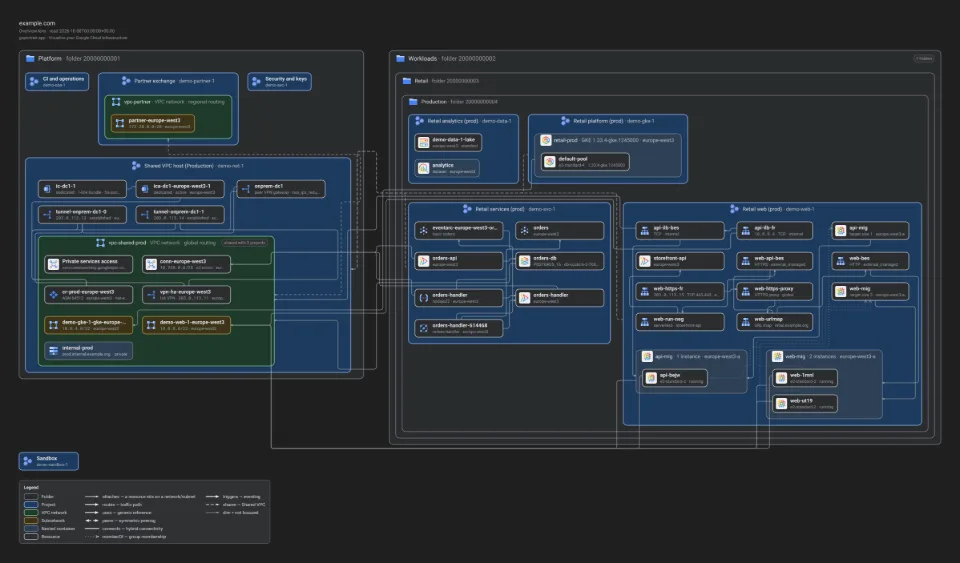
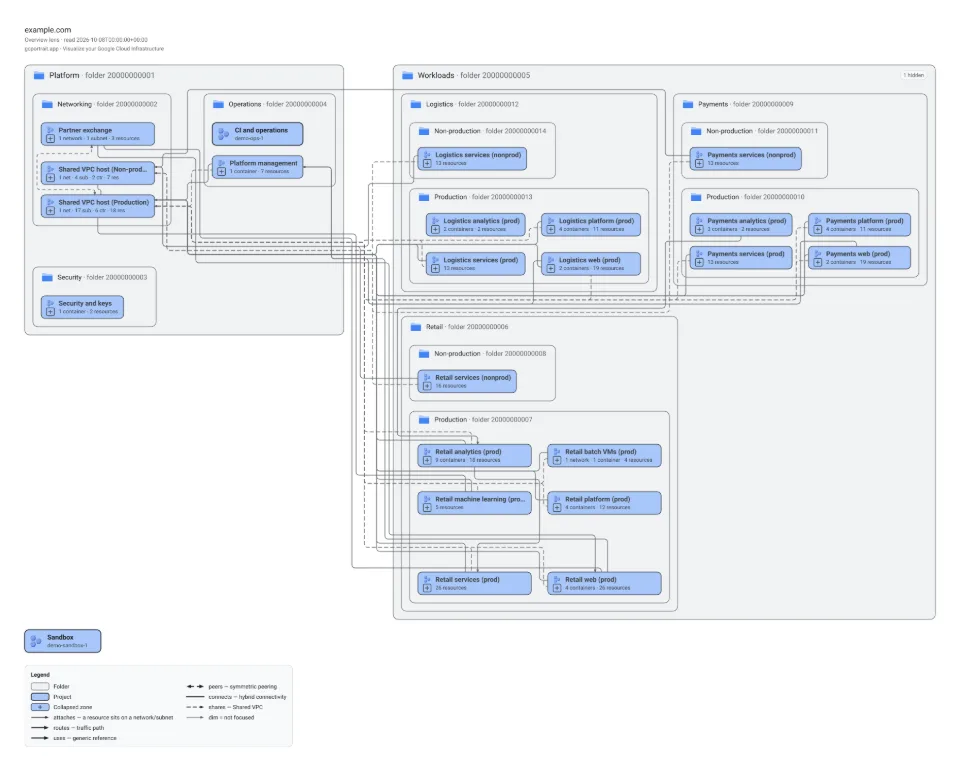
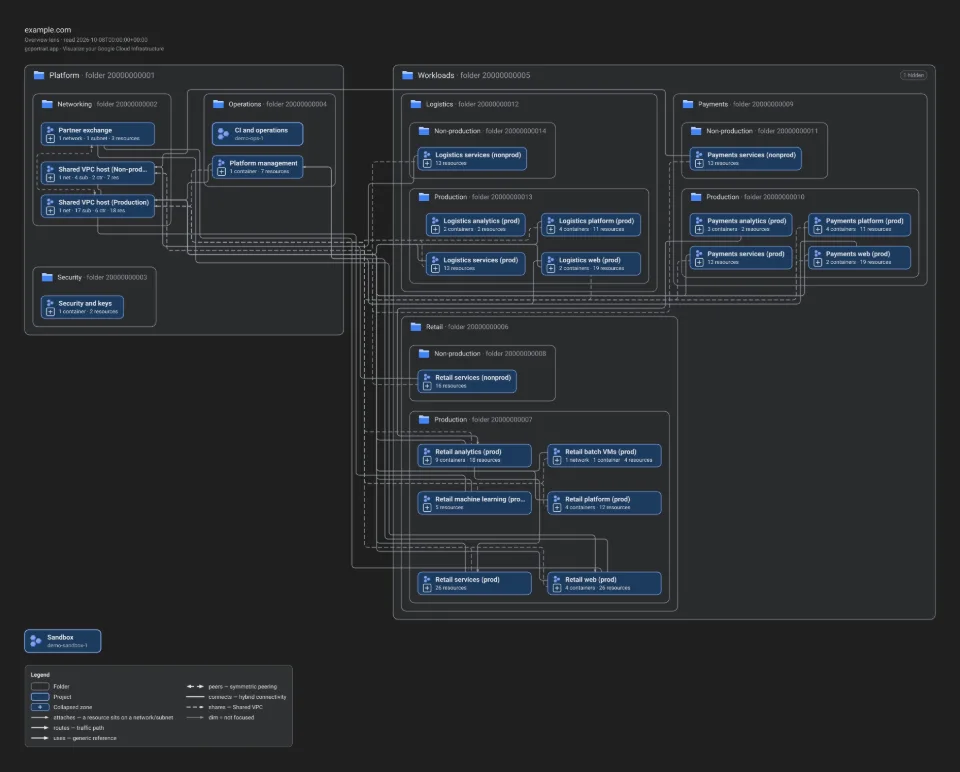
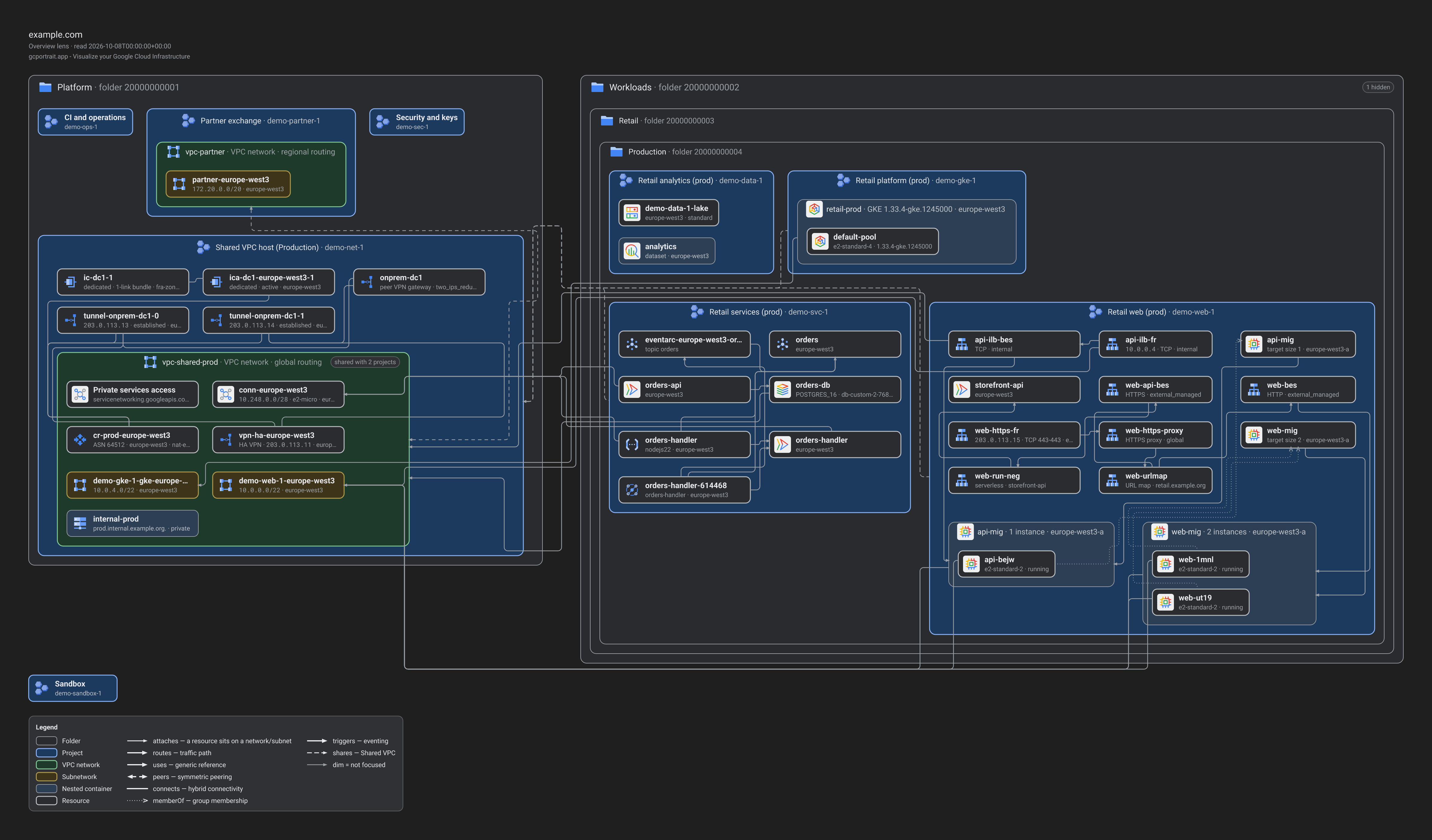
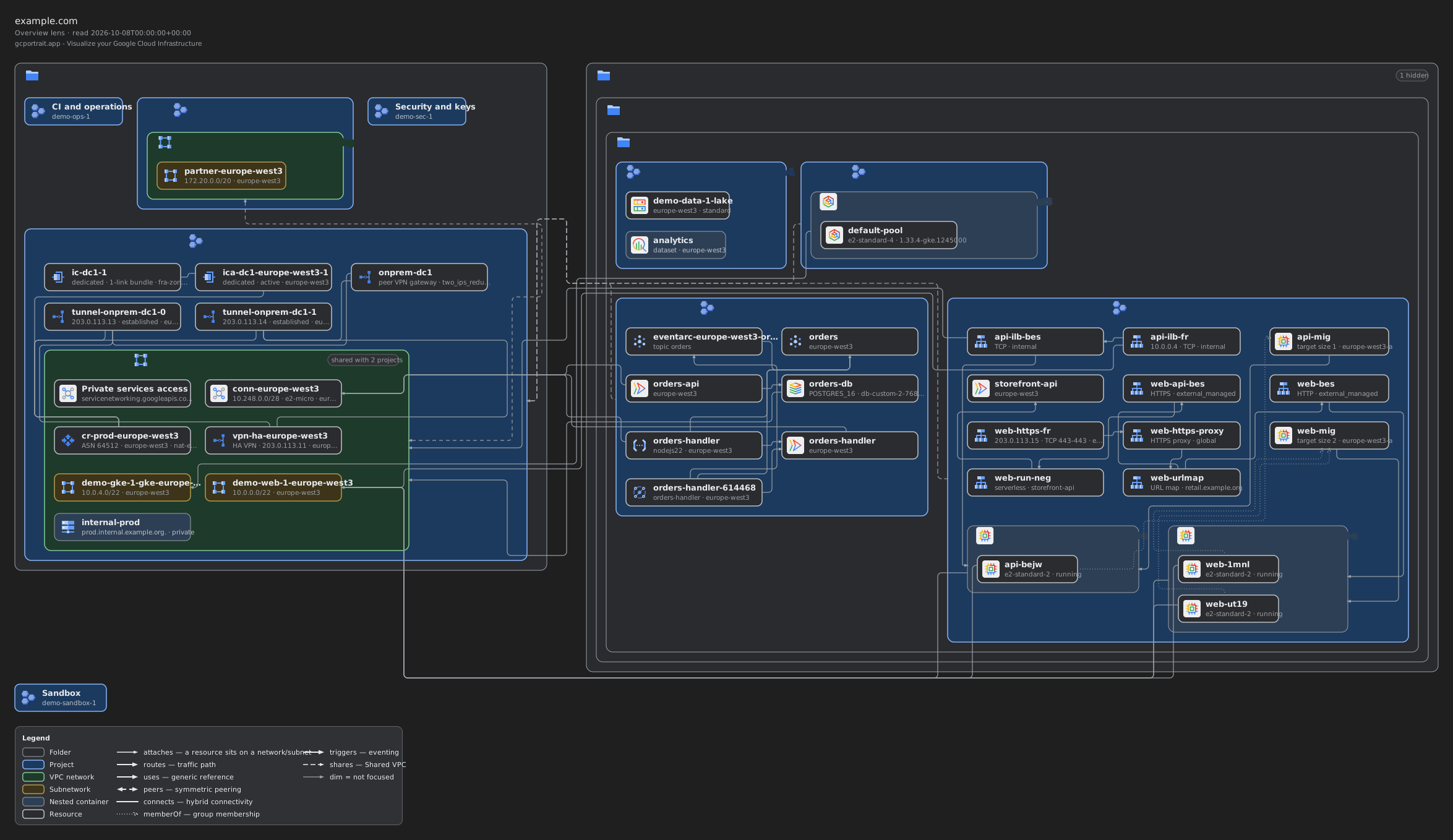
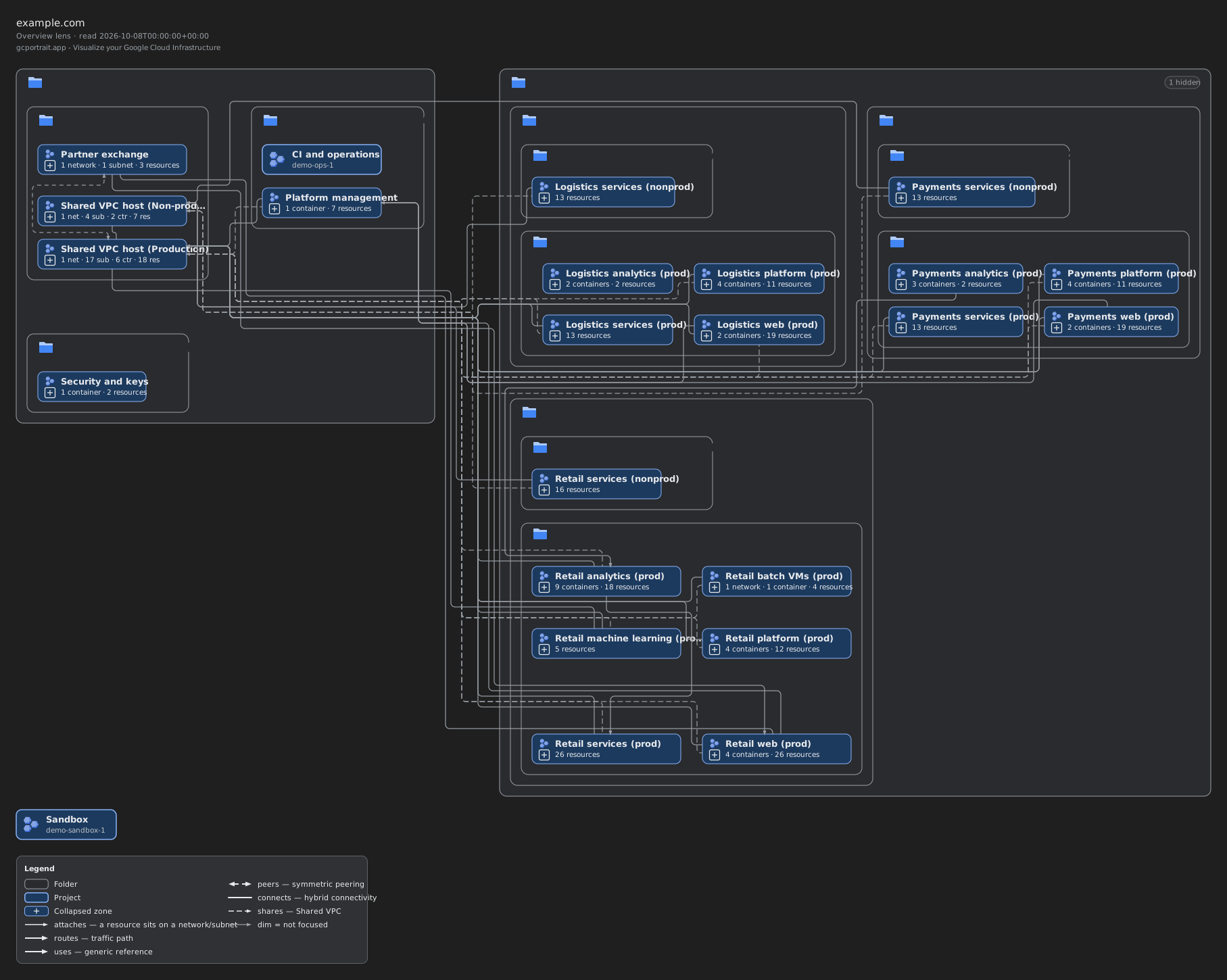
Every view in a light and a dark theme, with the same layout, the same tints and Google’s product icons unchanged. The app follows your system or the theme you pick, and an export, from the app or the API, is drawn in the theme you choose, whatever the screen shows.
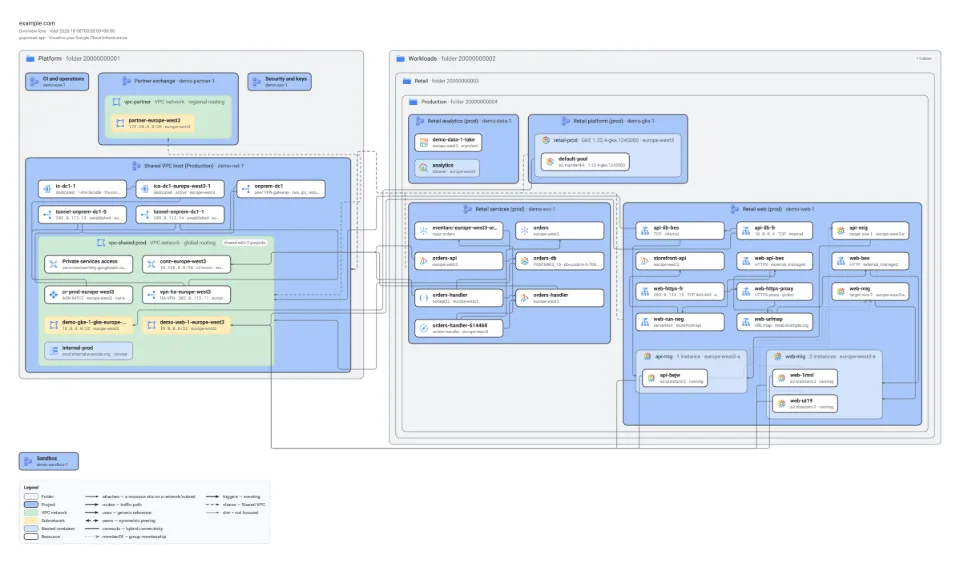
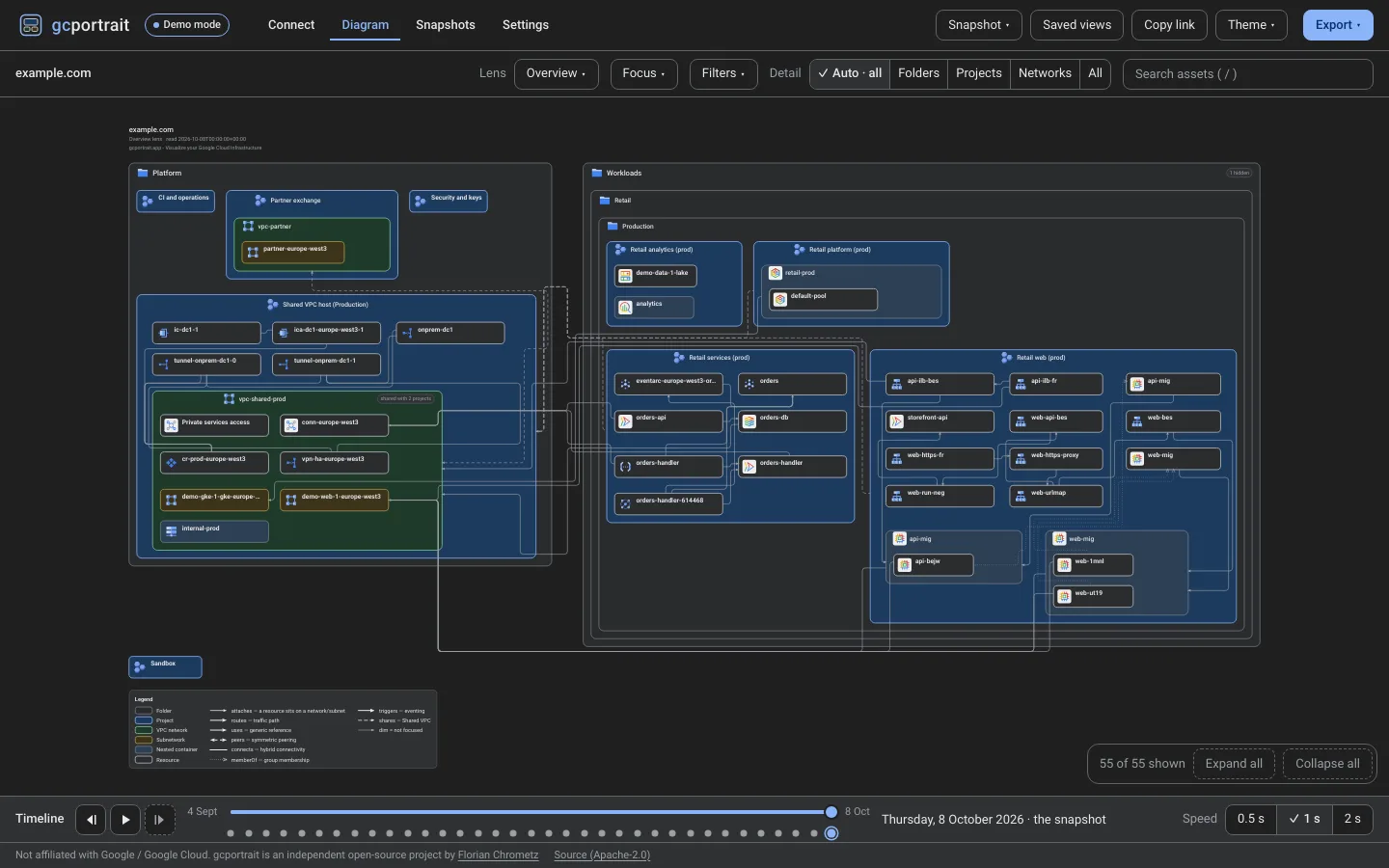
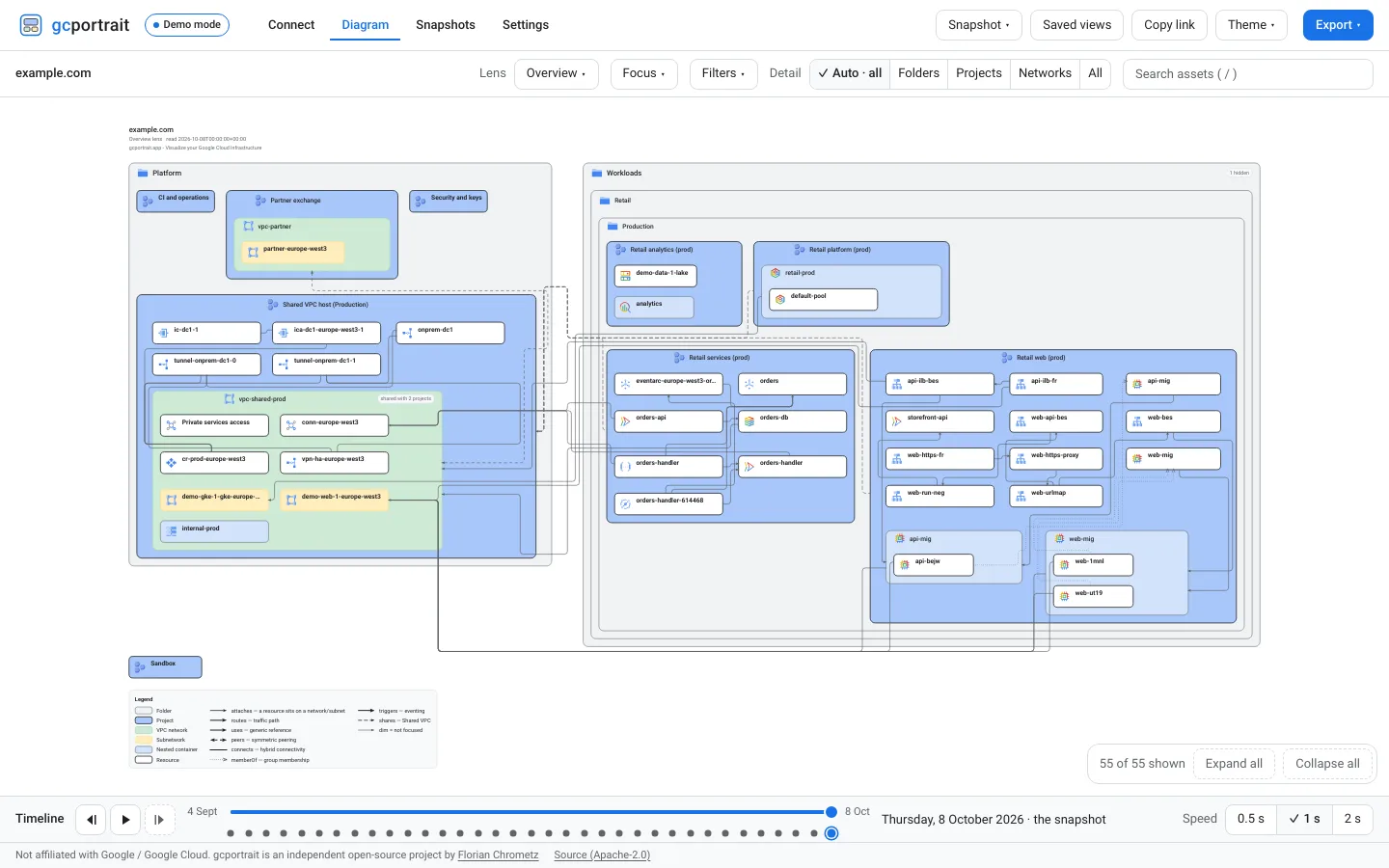
Both pictures are demo S in the Overview lens.
Light
Dark
Sample exports
See an export before you deploy
These are SVG, PNG and draw.io exports of the synthetic demo organisations, the app’s renderer’s drawing
of views the Export menu offers, as the API returns them: the diagram with its title block and its legend,
in the light and the dark theme. Open a draw.io file in diagrams.net to move, restyle and annotate what it
shows.
Demo S, Overview lens
The whole small demo organisation as the app opens it: folders, projects, the Shared VPC with its networks and every resource, with arrows for the references.
Editable: open the .drawio file in draw.io or diagrams.net.
All sample exports, with a focused Networking view and the commands that made them.
The SVGs name the Roboto fonts without embedding them (the Export menu’s “Embed fonts” option puts them in),
so where Roboto is not installed their labels may reflow; the PNGs are always drawn with Roboto. The draw.io
files name Google Fonts’ Roboto stylesheet, which diagrams.net loads when it opens them.
How it works
How to create a Google Cloud architecture diagram from your inventory
The same pipeline draws every diagram: in your browser for the web app, on your instance for the API.
Cloud Asset Inventory
Your instance lists the scope’s assets with your own Google account or its service account, or you load a
Cloud Asset Inventory export file.
Snapshot
The assets become a snapshot: kept in your browser for the web app, with the timeline’s days as you visit
them; built for each request and kept nowhere for the API.
Graph
The asset catalog, data for 632 asset types, turns references into relations: networks,
Shared VPC, load balancer chains.
Diagram
A layout engine packs the nested zones and routes the arrows: you explore, trace and export it in the web
app, or the API returns it as SVG, PNG or draw.io.
Self-host
Self-host in 10 minutes
gcportrait runs as one Cloud Run service in a Google Cloud project of yours, serving the web app and the API.
The installer downloads the newest release’s deploy scripts, checks them against the release’s checksums
and runs them: they enable the Google Cloud APIs the instance needs, create its service account without
roles and deploy the release’s image from GitHub Container Registry
(ghcr.io/florianchrometz/gcportrait). They end with the next steps: open the address, where the demo
works at once; create the OAuth client for “Sign in with Google” with the link and the origins they print;
redeploy with its id.
--dry-run at the end prints every change first; the last lines name the command that
removes everything the script created.
For teams
Grant the service account
In service-account mode, someone who may grant roles grants the instance’s service account read access to a
folder or project once; everyone who can see that scope then reads it through the instance, without Cloud
Asset Inventory roles of their own. A gate first checks each person’s own access to the scope.
roles/cloudasset.viewer and nothing else; prefer folders or projects to the whole organisation.
Variables
Edit a highlighted value in any command, or fill it in here: every command on this page follows, and Copy
copies a command with your values. They stay in this browser.
YOUR_PROJECT
The id of the project gcportrait runs in: deploy.sh’s --project.
Example: demo-gcportrait
Expected: 6 to 30 lowercase letters, digits or hyphens, starting with a letter and not ending with a hyphen.
YOUR_INSTANCE
The host your instance answers on: its Cloud Run address or your domain.
Example: gcportrait-10000000001.europe-west3.run.app
Expected: a host name such as gcportrait.example.com, without https:// or a path.
YOUR_PROJECT_ID
The id of a project to read; not necessarily the one gcportrait runs in.
Example: demo-web-1
Expected: 6 to 30 lowercase letters, digits or hyphens, starting with a letter and not ending with a hyphen.
YOUR_SA_EMAIL
The e-mail of gcportrait’s backend service account; the Permissions page shows it.
Example: [email protected]
Expected: a service account’s e-mail, ending in .gserviceaccount.com.
Questions
Frequently asked
Running your own instance, where your data goes, what a read costs: short answers, each with its guide. For
scripts, start with the API guide.
Florian Chrometz builds and maintains gcportrait, which draws a Google Cloud environment as it actually is:
every box a real asset from Cloud Asset Inventory, every arrow a real reference. Feedback, bug reports and
pull requests are welcome on GitHub.
gcportrait renders Google Cloud-style architecture diagrams. It is an independent open-source project and is
not affiliated with, endorsed by, or sponsored by Google. Google Cloud and the Google Cloud product icons are
trademarks of Google and are used under Google's icon usage terms.